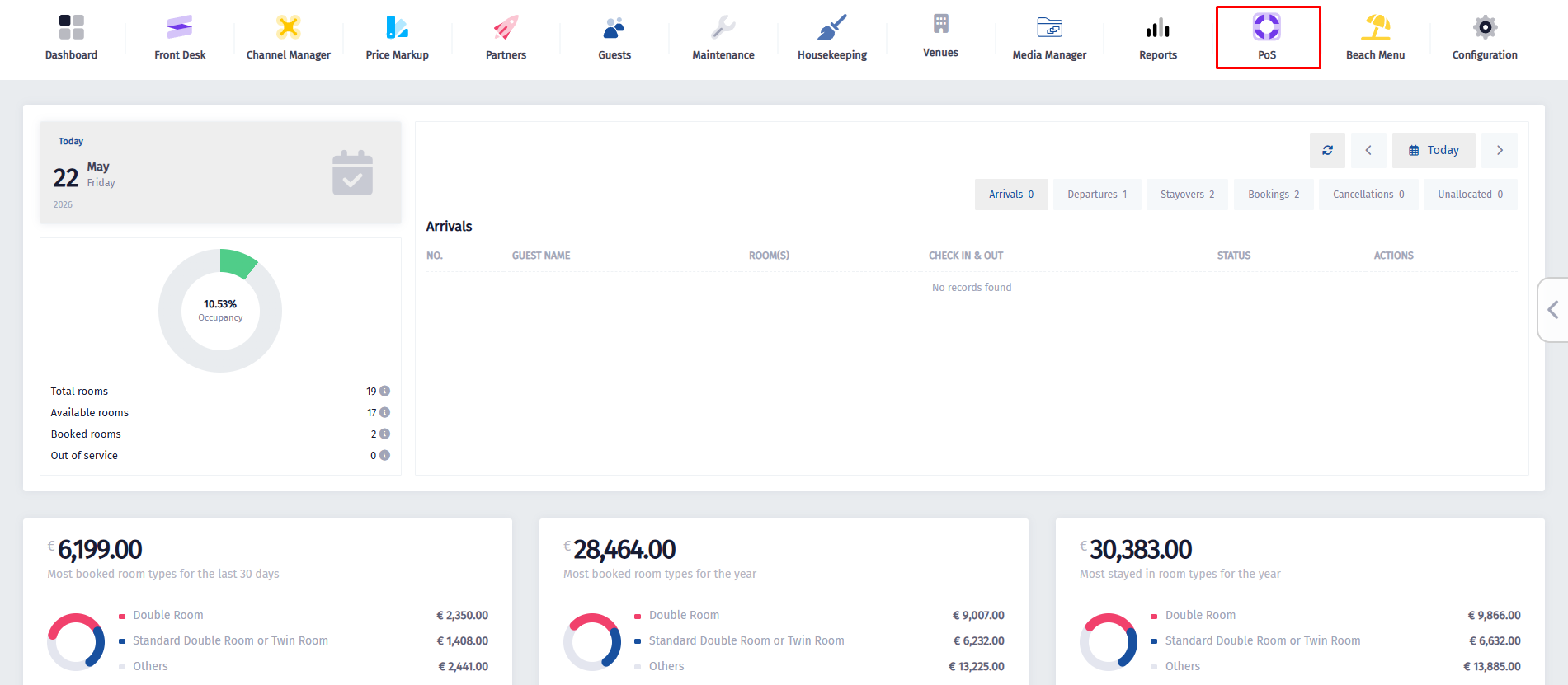
- Click on the PoS icon.
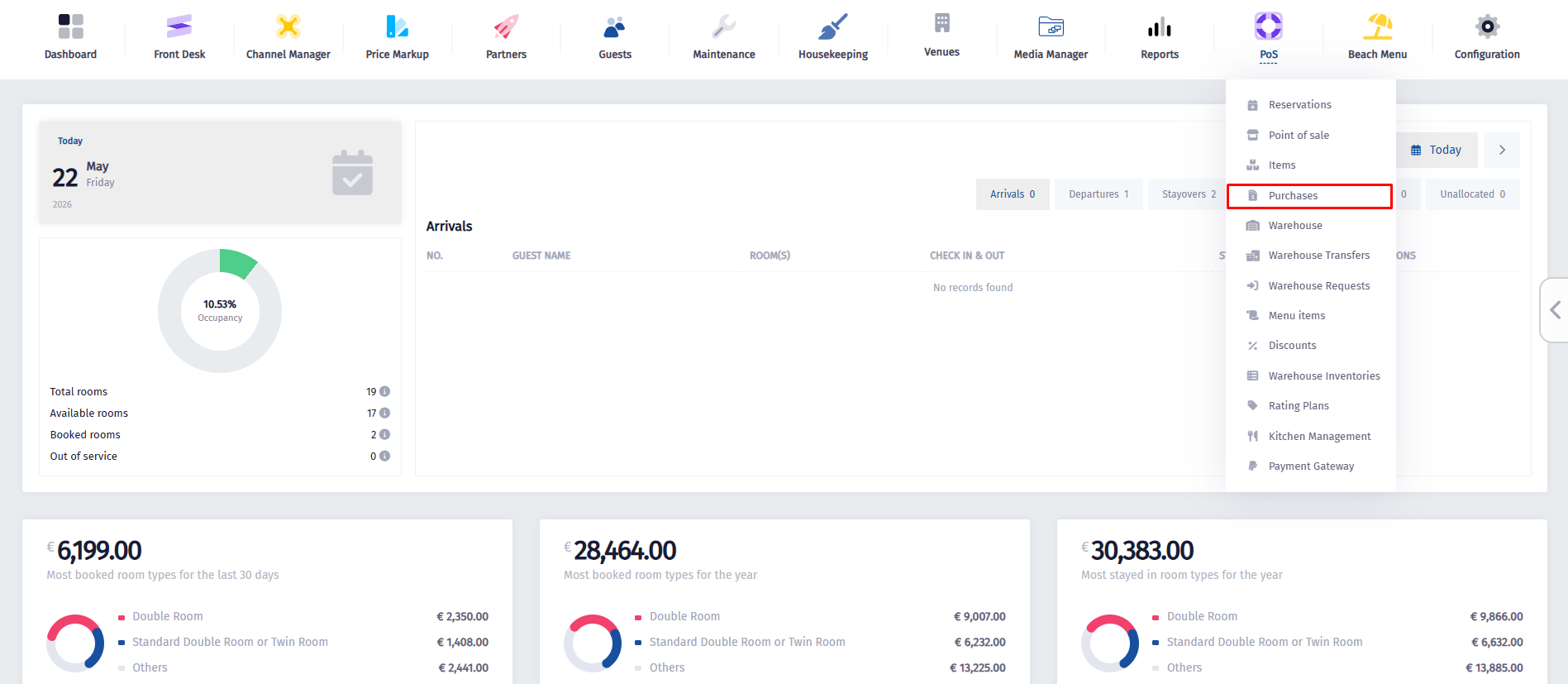
- Once the dropdown menu appears, click on Purchases.
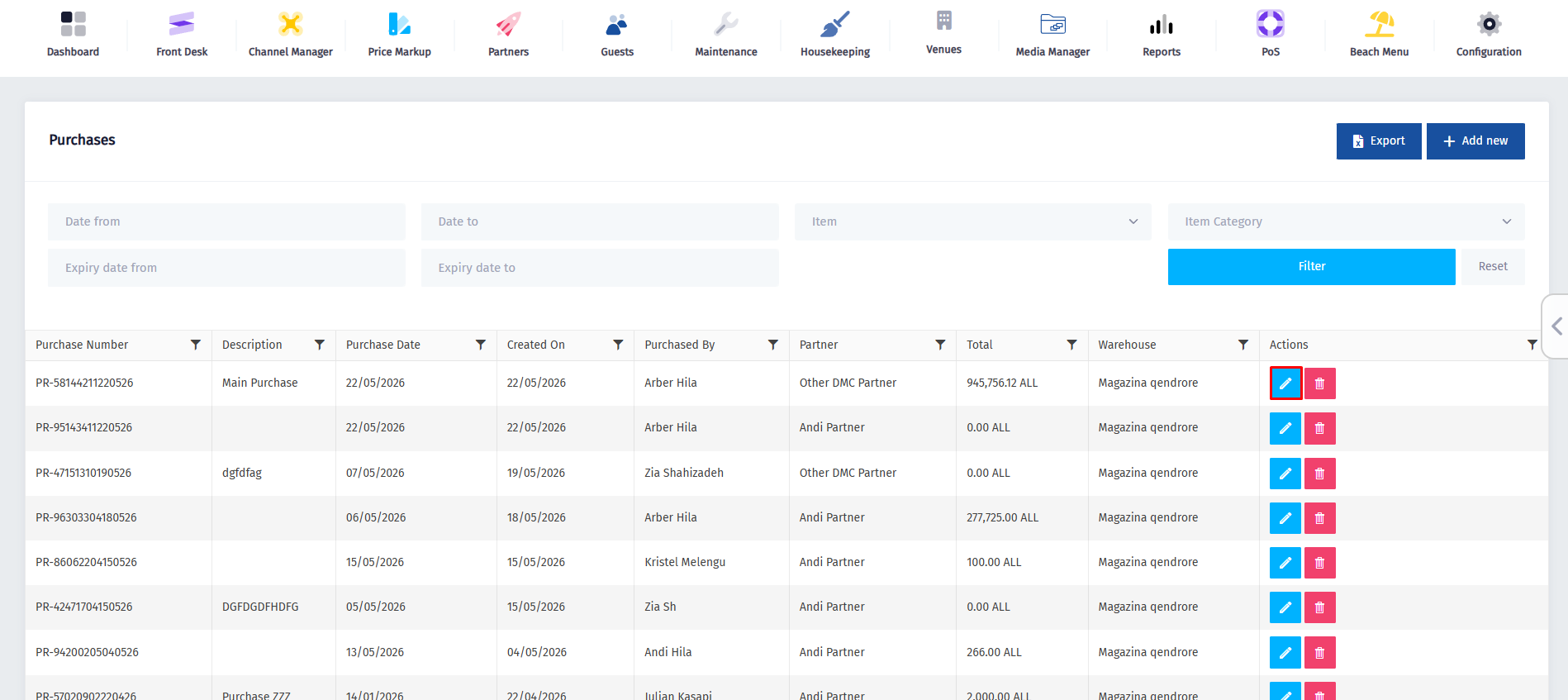
- Now find the purchase you want to transfer and click on the Edit button.
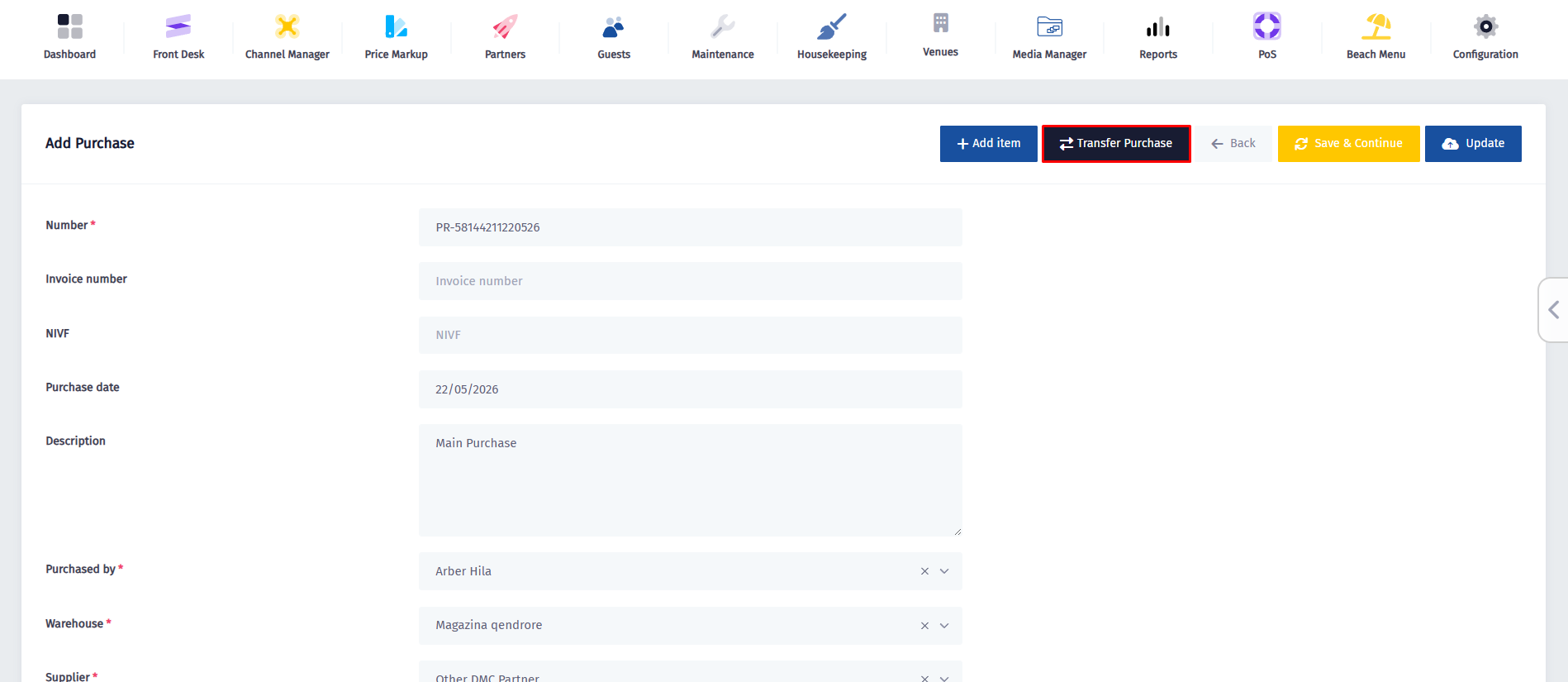
- Once you’re inside the Purchase, click on the Transfer Purchase button.
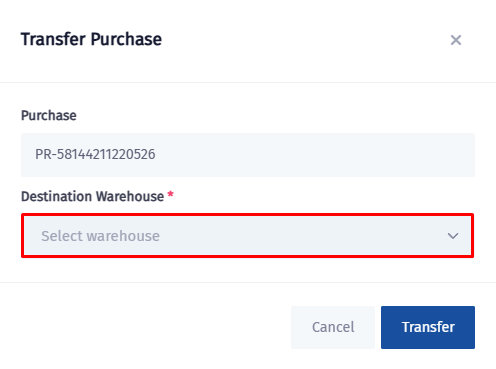
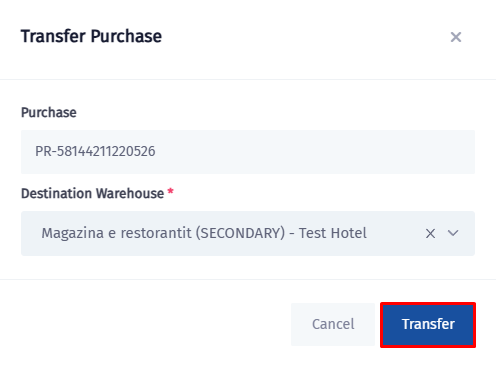
- Once you’ve selected the warehouse, click on Transfer.
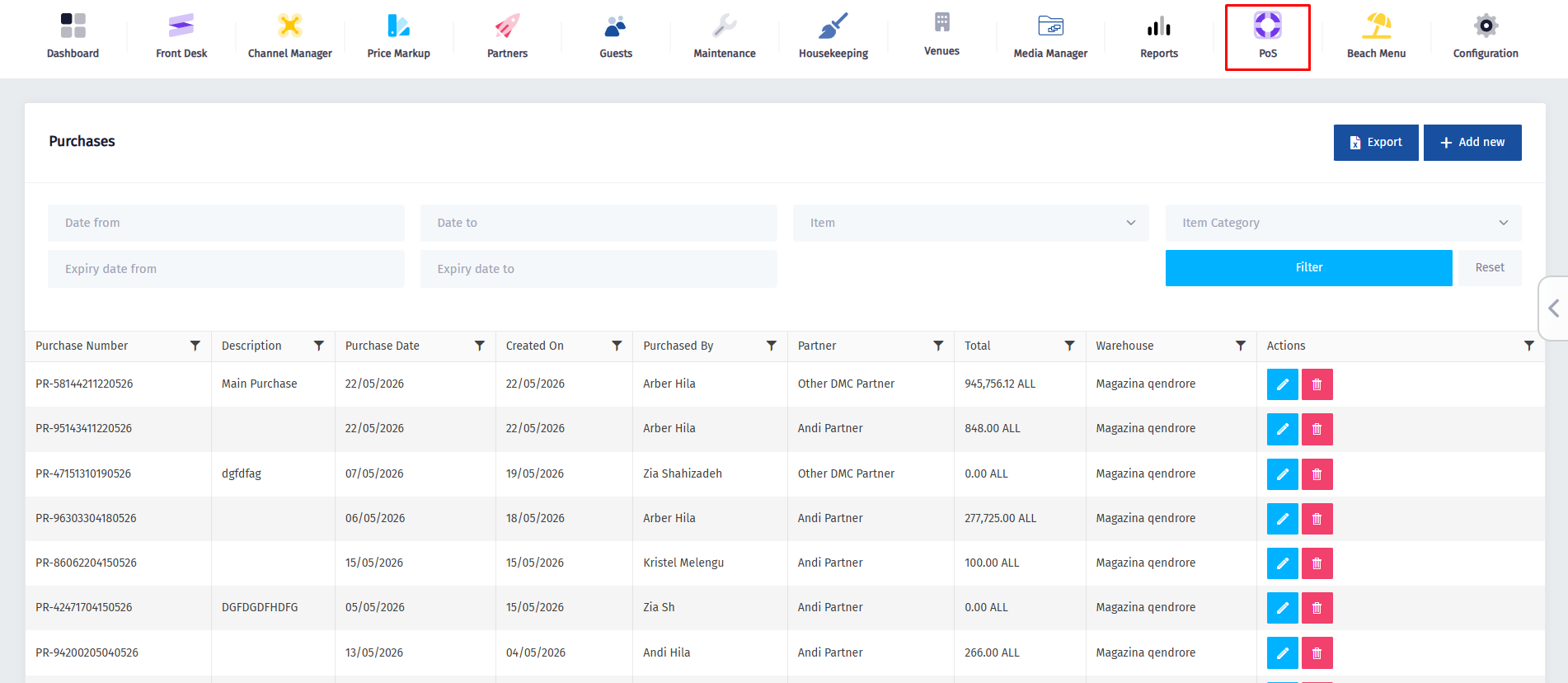
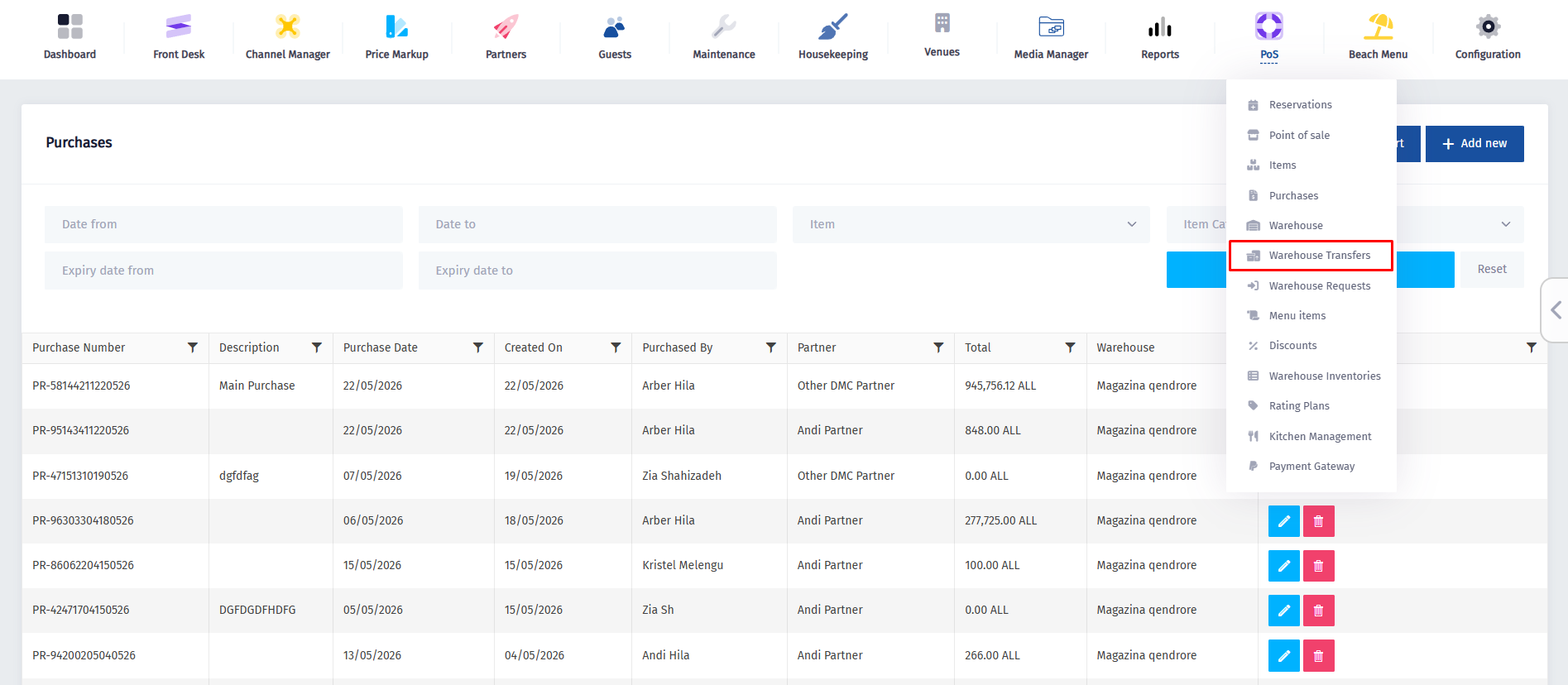
- After you’ve done the transfer, you’ll be redirected to the Purchases page. Click on the PoS icon again.
- Once the dropdown menu appears, click on Warehouse Transfers.
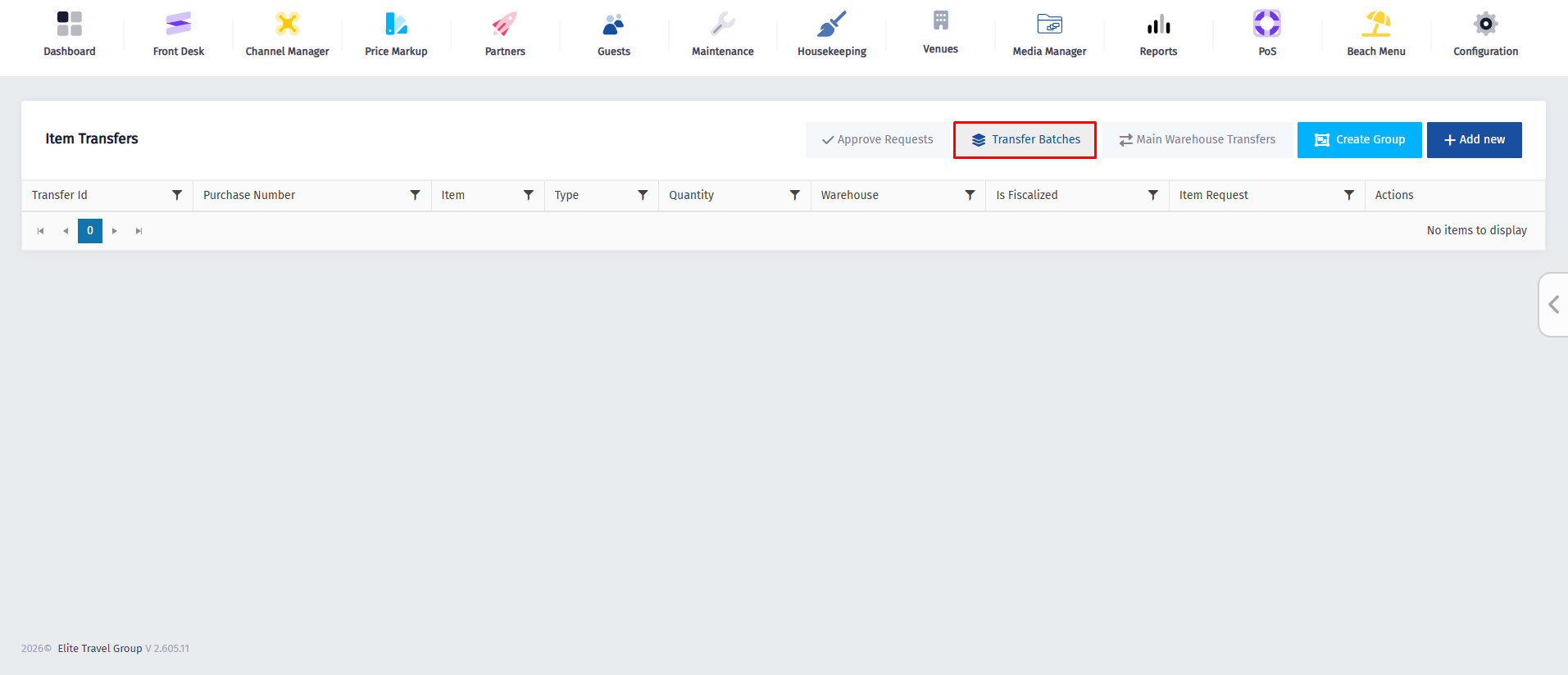
- After you’ve reached this page, click on Transfer Batches.
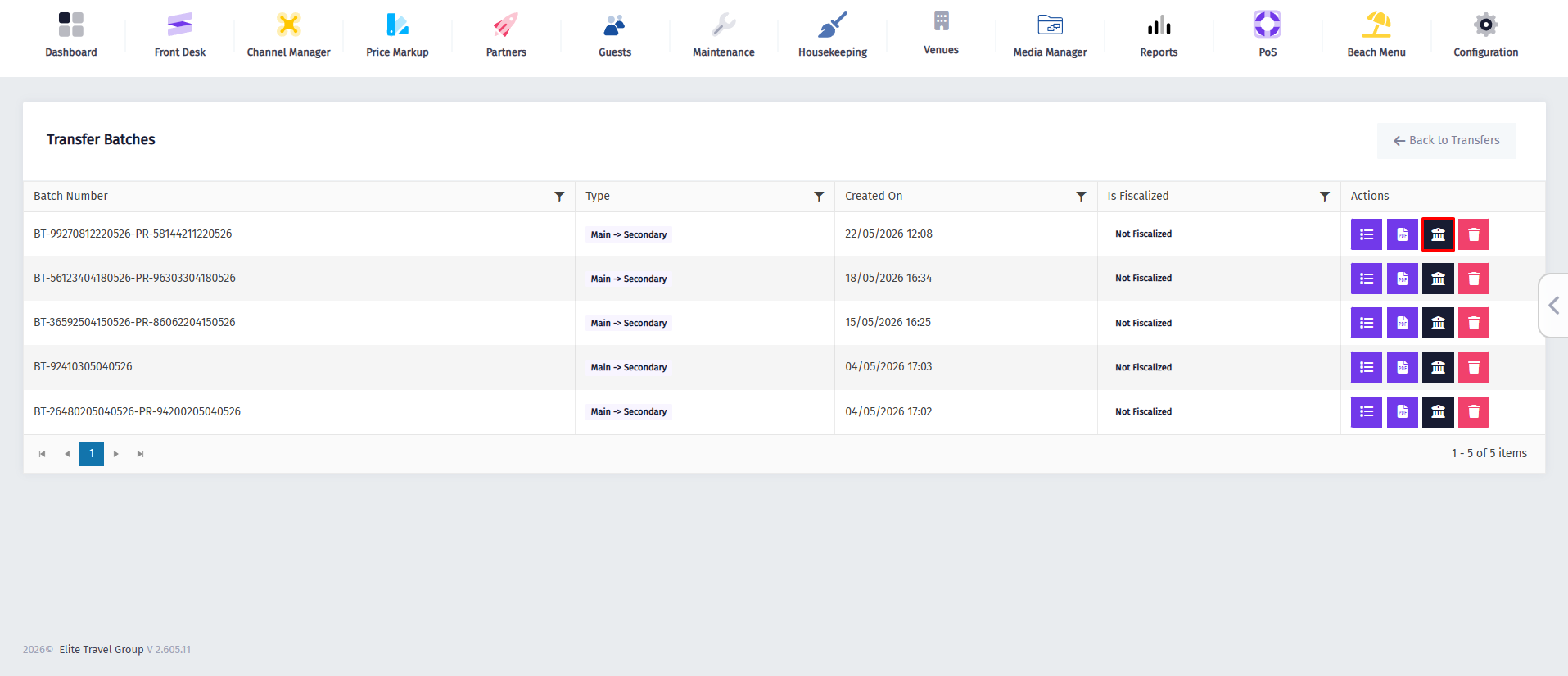
- Once you’re in this page, locate the transfer you just made and click on the Fiscalize button.
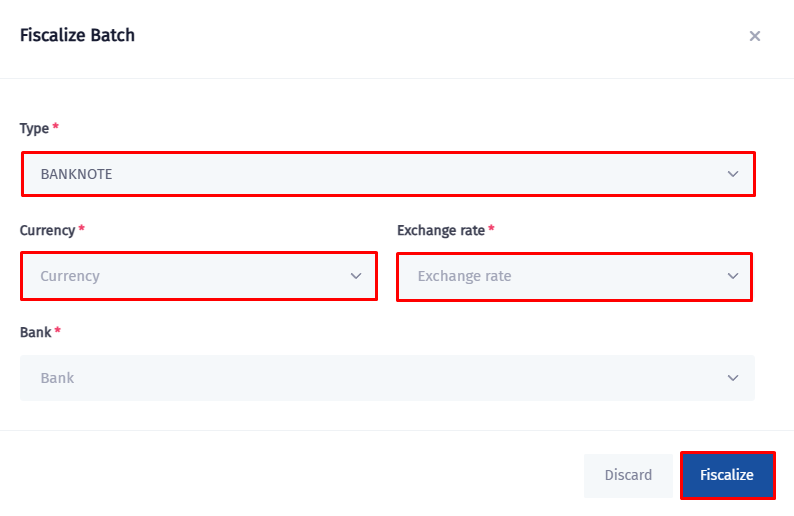
- In the final step, complete the fiscalization details by selecting the payment Type, Currency, Exchange Rate, and Bank from their respective dropdown menus. After verifying that all information is correct, click on the Fiscalize button.